
The Language and Culture of Higher Learning - August 2021
- Registration Closed
What does an academic administrator need to know in order to work and navigate within an academic enterprise? What terminology, standards, roles, and structures govern and guide the contemporary university? This course provides an understanding of definitions, roles and titles, processes, and organizational governance models needed to be conversant and adept in navigating within the academic ecosystem.
This four week course will consist of weekly live virtual classroom meetings hosted in Zoom. Please be sure you are able to join a Zoom meeting prior to these events. Live classroom attendance is strongly encouraged but not mandatory. The livee class meetings are scheduled for the following days and times:
Schedule TBA
Dr. James Shaeffer
President, Eastern Shore Community College
My name is Jim Shaeffer and, I will be facilitating this course. If you have any questions or need help with the course content in any way, please use the information below to contact me. I will do my best to reply to emails within 24 hrs.
Jim Shaeffer became the fifth president of Eastern Shore Community College on July 1, 2019. As president, Shaeffer leads the college in serving Virginia’s Eastern Shore with two-year degree programs, workforce certifications as well as customized training for businesses and industry. Previous to joining ESCC, Shaeffer served as the Founding Dean of the new College of Continuing Education and Professional Develop at Old Dominion University (ODU). Before joining ODU, Shaeffer served as the first Associate Vice Provost for Outreach and Engagement at James Madison University (JMU) and as Associate Vice President for Outreach and the first CIO at the University of North Dakota. Shaeffer has been extremely active in UPCEA holding several positions regionally and nationally and serving as UPCEA president 2011-2012. Shaeffer has a PhD from Northwestern University, a masters from Kansas State University, and bachelor’s from Iowa State University.
Welcome to the Quick Start Guide
This guide is highly recommended if this is your first professional development course with UPCEA. Some tips are provided for navigating the course as well as information about how to obtain technical support.
Tips for Navigating this Course
- Content pages need to be acknowledged. Once you have read, viewed, or otherwise completed the content, look for the button at the end to acknowledge you have completed the item. Sometimes, this step is required in order to advance to future items in the course.
- Future items may be hidden from view. For example, content for the coming week may not be visible until the course facilitator releases it to the class.
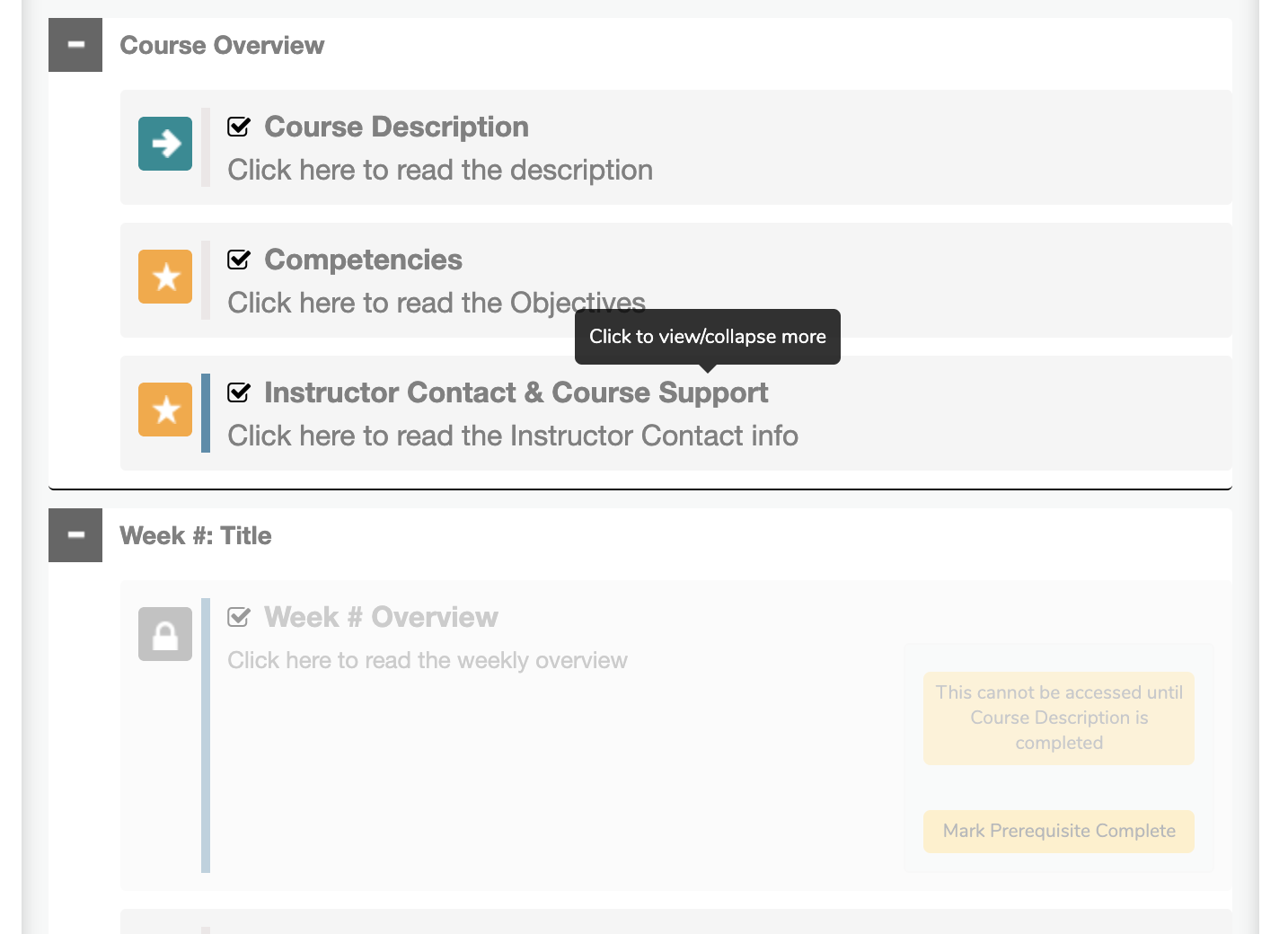
- Some items have prerequisites and do not become available until after you have completed the item it depends upon. Prerequisite items have a grey overlay (making them look translucent) with a lock next to them. When you click on the item, its acknowledgement button will note what item it depends on (see image below for an example).
Tips for Working with Discussions
- Discussions will open in a pop-up window when you click Enter the Discussion. Instructions will be posted on the discussion forum that loads in the pop-up window.
- Important! You cannot edit or delete your discussion posts. It is recommended you draft your post in another document editing app first, like MS Word or Google Docs, then post your final draft to the board.
- To create a new top level post, enter your post in to the text field editor box at the top of the discussion pop-up window.
- Replying to a post by clicking reply under an existing post will add your post to the discussion thread. Threaded discussion posts appear indented under the parent post.
- Posts are listed in chronological order with the oldest post appearing at the top.
Tips for Viewing Videos
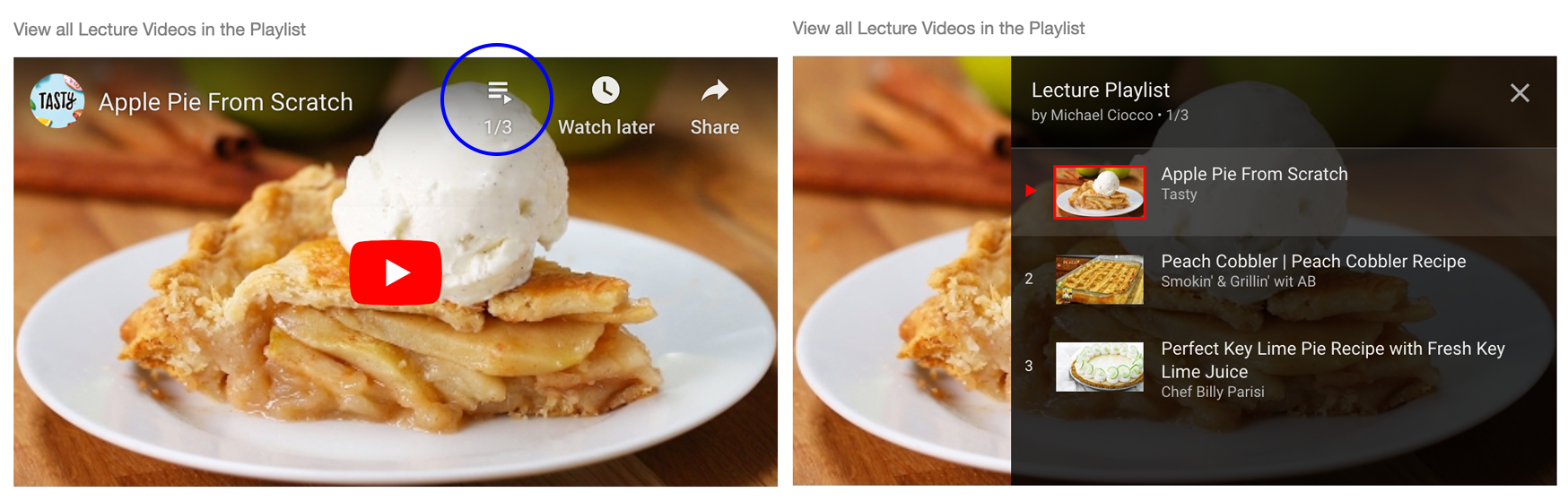
- Some videos may be arranged in a playlist. A playlist will automatically play all videos in the series in order.
- The playlist will automatically play through all videos after you start the first video.
- You can view all videos in the playlist by clicking on the playlist icon (see image below where the icon is in a blue circle). You can skip to any video in the playlist by clicking on it.
For the Best Experience
- Use either the FireFox or Google Chrome browser app for the best experience. The course has been tested to work well with these two browsers.
Technical Support
- Email: [email protected]
- Hours of Operation: 8:00 am to 4:30 pm EST. Expect a response within 1 business day.